
Zoom in and out on planned routes when using Mac Version of Scenic

Quote from Marts on 08.07.2024, 20:36I've planned a few routes using the Power Planner on the Mac version of Scenic.
When I open them to view them I cannot zoom in or out. I can only pan and scroll left/right or up/down.
If I open the route in Power Planner then I can zoom in and out.
Or, if I click on the "full screen" icon the map and route opens in full screen mode and can be zoomed but the route details aren't displayed.
Could the zoom function be added to Scenic when viewing planned routes in non-full screen mode, please?
One reason is that for a particular route that I planned yesterday I wanted to do a screen grab of the map including route details up the top to post to a ride group. But as I can't zoom in or out I can't capture the entire route on the map (bottom or top bits are chopped off).
Another thing - when planning routes the labels of roads are often hard to read, even on the big 32" widescreen. Zooming in doesn't make the text any bigger. Is this a Here Map thing or can it be changed in Scenic?
I've planned a few routes using the Power Planner on the Mac version of Scenic.
When I open them to view them I cannot zoom in or out. I can only pan and scroll left/right or up/down.
If I open the route in Power Planner then I can zoom in and out.
Or, if I click on the "full screen" icon the map and route opens in full screen mode and can be zoomed but the route details aren't displayed.
Could the zoom function be added to Scenic when viewing planned routes in non-full screen mode, please?
One reason is that for a particular route that I planned yesterday I wanted to do a screen grab of the map including route details up the top to post to a ride group. But as I can't zoom in or out I can't capture the entire route on the map (bottom or top bits are chopped off).
Another thing - when planning routes the labels of roads are often hard to read, even on the big 32" widescreen. Zooming in doesn't make the text any bigger. Is this a Here Map thing or can it be changed in Scenic?

Quote from Guido on 09.07.2024, 08:40I’ll look into that. Meanwhile (and perhaps even better for your purpose) you could send the share link to the group? It’s a bit hard to get to on Mac (improvement coming), but gran the screen above the map preview and scroll down. Then the buttons (incl share button) will appear.
I’ll look into that. Meanwhile (and perhaps even better for your purpose) you could send the share link to the group? It’s a bit hard to get to on Mac (improvement coming), but gran the screen above the map preview and scroll down. Then the buttons (incl share button) will appear.

Quote from HyperMulti on 09.07.2024, 15:53FWIW: I'm able to zoom in/out for any planned route (don't have to be full screen, etc).
FWIW: I'm able to zoom in/out for any planned route (don't have to be full screen, etc).
Quote from Marts on 09.07.2024, 21:23Quote from HyperMulti on 09.07.2024, 15:53FWIW: I'm able to zoom in/out for any planned route (don't have to be full screen, etc).
How do you zoom in and out? Which keys are you using?
Quote from HyperMulti on 09.07.2024, 15:53FWIW: I'm able to zoom in/out for any planned route (don't have to be full screen, etc).
How do you zoom in and out? Which keys are you using?
Quote from Marts on 09.07.2024, 21:30Another explanation of what I am seeing/doing.
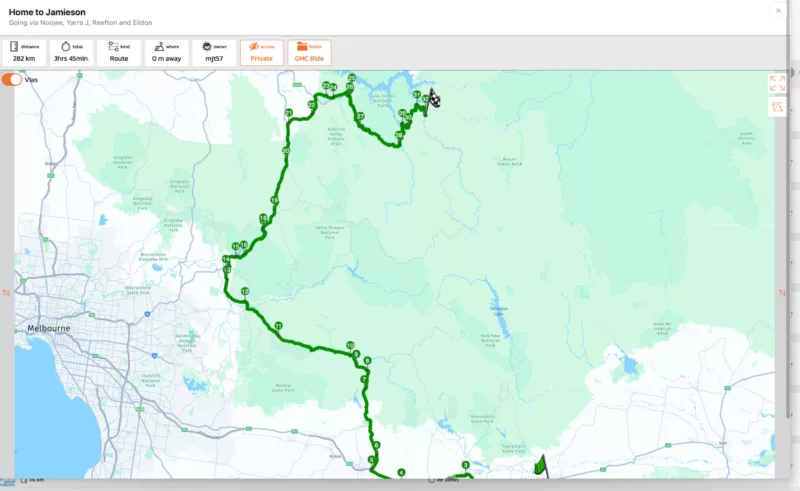
First Image shows the overall route including details (distance etc.). I cannot zoom in or out on the map in this view.
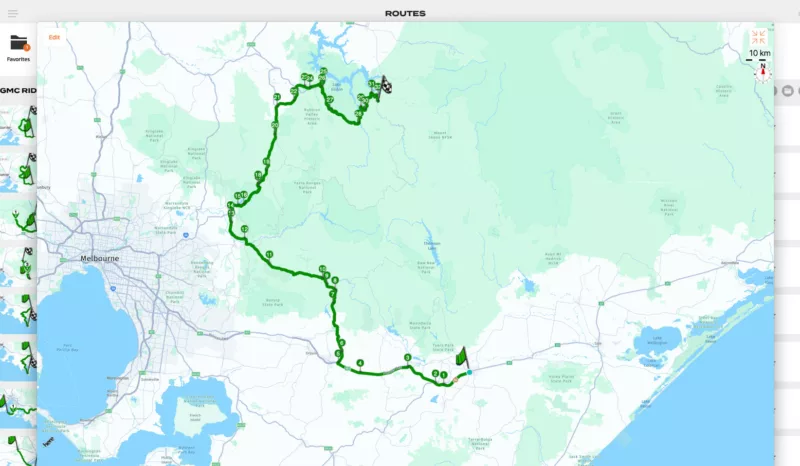
Second one shows the map in "full screen" view and I can zoom in and out on it. In this image I zoomed out to show the entire route.
Another explanation of what I am seeing/doing.
First Image shows the overall route including details (distance etc.). I cannot zoom in or out on the map in this view.
Second one shows the map in "full screen" view and I can zoom in and out on it. In this image I zoomed out to show the entire route.
Quote from HyperMulti on 10.07.2024, 08:07Quote from Marts on 09.07.2024, 21:23Quote from HyperMulti on 09.07.2024, 15:53FWIW: I'm able to zoom in/out for any planned route (don't have to be full screen, etc).
How do you zoom in and out? Which keys are you using?
I just use pinch with two fingers to zoom in or out on my trackpad.
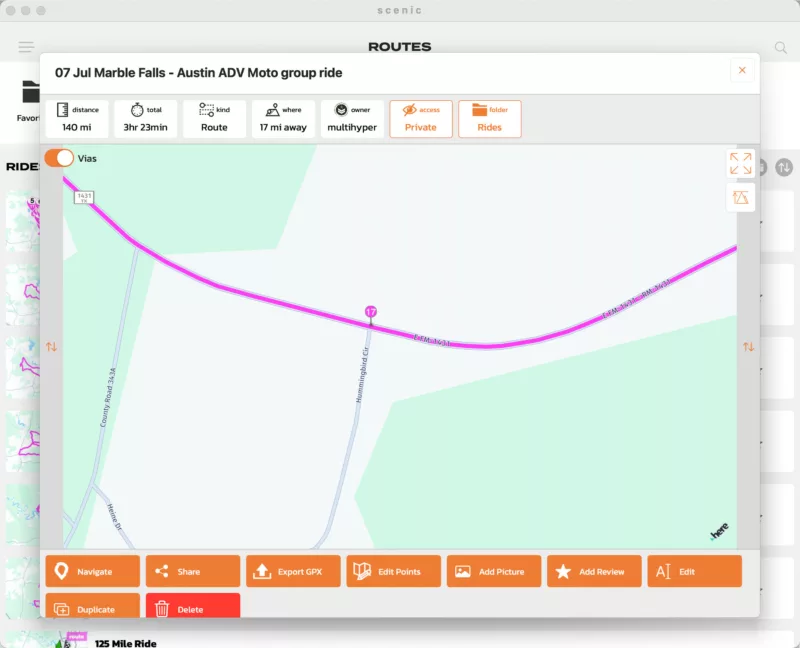
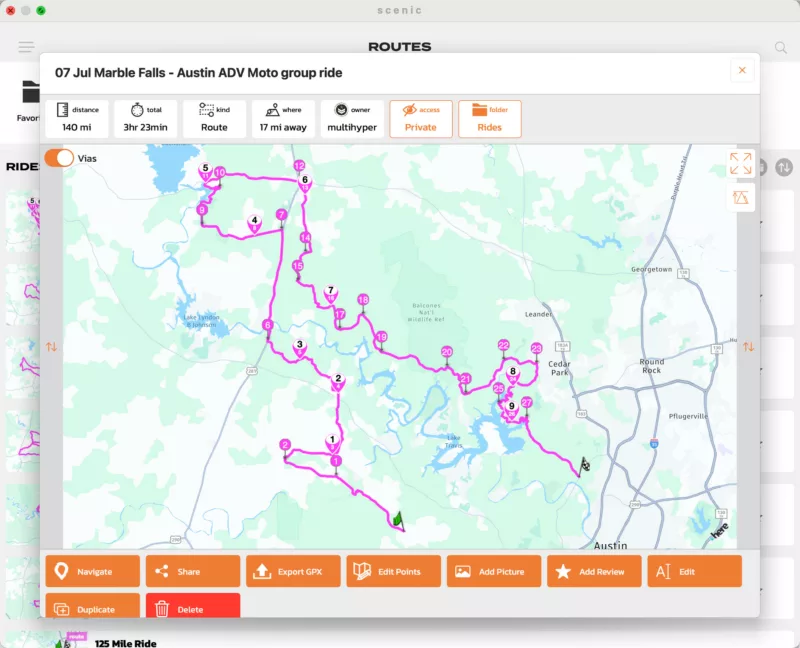
Here's what I see when zoomed in & what I see when I first open a planned route.
Quote from Marts on 09.07.2024, 21:23Quote from HyperMulti on 09.07.2024, 15:53FWIW: I'm able to zoom in/out for any planned route (don't have to be full screen, etc).
How do you zoom in and out? Which keys are you using?
I just use pinch with two fingers to zoom in or out on my trackpad.
Here's what I see when zoomed in & what I see when I first open a planned route.
Quote from Marts on 10.07.2024, 20:10Quote from HyperMulti on 10.07.2024, 08:07Quote from Marts on 09.07.2024, 21:23Quote from HyperMulti on 09.07.2024, 15:53FWIW: I'm able to zoom in/out for any planned route (don't have to be full screen, etc).
How do you zoom in and out? Which keys are you using?
I just use pinch with two fingers to zoom in or out on my trackpad.
Ok, that makes sense. I'm using a Mac Mini so I don't have a trackpad. What I will do is to install Scenic on the Macbook and see how that goes. I have it in my "photo" studio (a spare bedroom which I was using to experiment with portrait photography) and hooked up to a 27" monitor. I'll have a play with that, but nearly all of my route planning is done on the Mac Mini.
Quote from HyperMulti on 10.07.2024, 08:07Quote from Marts on 09.07.2024, 21:23Quote from HyperMulti on 09.07.2024, 15:53FWIW: I'm able to zoom in/out for any planned route (don't have to be full screen, etc).
How do you zoom in and out? Which keys are you using?
I just use pinch with two fingers to zoom in or out on my trackpad.
Ok, that makes sense. I'm using a Mac Mini so I don't have a trackpad. What I will do is to install Scenic on the Macbook and see how that goes. I have it in my "photo" studio (a spare bedroom which I was using to experiment with portrait photography) and hooked up to a 27" monitor. I'll have a play with that, but nearly all of my route planning is done on the Mac Mini.

Quote from johansw on 11.07.2024, 05:02On my Mac i use the arrows for moving the map left - right - up - down.
For zoom in I use "command+arrow up", for zoom out "command+arrow down".
Johan
On my Mac i use the arrows for moving the map left - right - up - down.
For zoom in I use "command+arrow up", for zoom out "command+arrow down".
Johan
Quote from Marts on 11.07.2024, 20:34Quote from johansw on 11.07.2024, 05:02On my Mac i use the arrows for moving the map left - right - up - down.
For zoom in I use "command+arrow up", for zoom out "command+arrow down".
Johan
That works when viewing the map viewer, but not when viewing a planned (and saved) route. See my screen shots above where zooming does and doesn't work.
Quote from johansw on 11.07.2024, 05:02On my Mac i use the arrows for moving the map left - right - up - down.
For zoom in I use "command+arrow up", for zoom out "command+arrow down".
Johan
That works when viewing the map viewer, but not when viewing a planned (and saved) route. See my screen shots above where zooming does and doesn't work.
Quote from johansw on 12.07.2024, 03:14You are right!
I played around a bit, choosing menu option Scenic / Settings / Touch alternative / On
This made it possible to move a planned and saved route around with arrows, but I did not find the key / key combination for zooming, although it zoome in on some occation when testing various key combinations quickly in a row, but not slowly.. So really not very useful for me as I have trackpad for moving the map.
I have to go to Edit mode for full functionality.
You are right!
I played around a bit, choosing menu option Scenic / Settings / Touch alternative / On
This made it possible to move a planned and saved route around with arrows, but I did not find the key / key combination for zooming, although it zoome in on some occation when testing various key combinations quickly in a row, but not slowly.. So really not very useful for me as I have trackpad for moving the map.
I have to go to Edit mode for full functionality.


