
How to go back the same way

Quote from mattsz on 26.03.2024, 14:39If I understand you correctly... the answer is yes!
Navigate to the "Routes" menu and tap the route in question to select it. Scroll down and select "Edit Points"... or "Duplicate" if you want to create a new opposite-direction route rather than change the original route. Either choice will open the Power Planner.
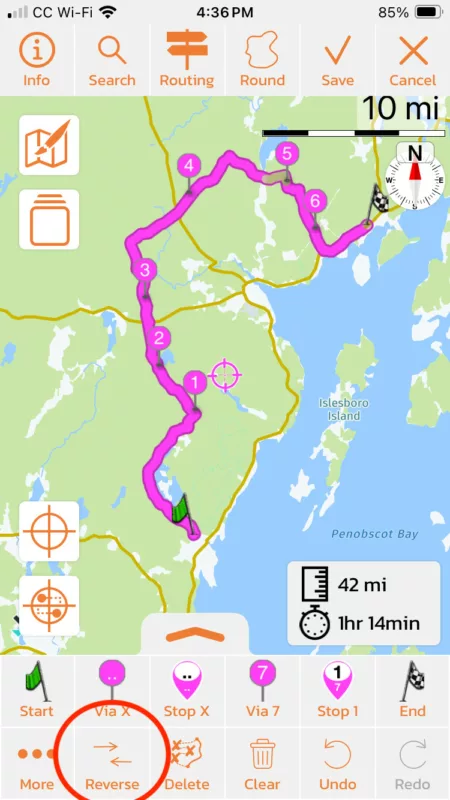
Down in the bottom row of buttons at the bottom of the screen, you'll find a "Reverse" button - tap it and your route should be reversed, including start and finish points, with via points re-ordered to match...
If I understand you correctly... the answer is yes!
Navigate to the "Routes" menu and tap the route in question to select it. Scroll down and select "Edit Points"... or "Duplicate" if you want to create a new opposite-direction route rather than change the original route. Either choice will open the Power Planner.
Down in the bottom row of buttons at the bottom of the screen, you'll find a "Reverse" button - tap it and your route should be reversed, including start and finish points, with via points re-ordered to match...

Quote from johansw on 26.03.2024, 14:43At least if the route has been planned in power planner and saved, there is a menu choice at the bottom of the screen to turn the route the other way around.
At least if the route has been planned in power planner and saved, there is a menu choice at the bottom of the screen to turn the route the other way around.
Quote from Zoomer1 on 26.03.2024, 15:27Problem: when I go to route, I have power planned and saved, I can’t get to anything at the bottom;there is nothing there. All I get is the route I planned and I can’t edit it. Do you know what I might be doing wrong?
Problem: when I go to route, I have power planned and saved, I can’t get to anything at the bottom;there is nothing there. All I get is the route I planned and I can’t edit it. Do you know what I might be doing wrong?

Quote from Guido on 26.03.2024, 15:32I imaginge you are on iPad or Mac? Check out this post: https://scenic.app/forum/topic/planning-and-using-different-type-of-route-settings/#postid-7066
I imaginge you are on iPad or Mac? Check out this post: https://scenic.app/forum/topic/planning-and-using-different-type-of-route-settings/#postid-7066
Quote from Guido on 26.03.2024, 15:51You don't have to paste. The screenshot is just to show how to get to the buttons below the map. If you grab on the map, it will move the map. If you grab in the circled area it will scroll down below the map, making the buttons visible. One of them is the "edit points" button, and there's a "duplicate' button. Those will bring you to the power planner (the duplicate button first makes a duplicate of the route).
You don't have to paste. The screenshot is just to show how to get to the buttons below the map. If you grab on the map, it will move the map. If you grab in the circled area it will scroll down below the map, making the buttons visible. One of them is the "edit points" button, and there's a "duplicate' button. Those will bring you to the power planner (the duplicate button first makes a duplicate of the route).


