
Road Closures and Traffic Incidents
As of Scenic version 4.32 on iOS, Scenic can show real-time road closures, accidents, and other traffic incidents on the map. This helps you spot problems ahead and make informed decisions while planning or riding.
Incident data is provided by TomTom and includes road closures, road works, accidents, traffic jams, dangerous conditions, weather-related hazards, and more.
Important: Road closures and incidents are currently shown for informational purposes only. They are not yet taken into account during route calculation. If a road on your route is closed, Scenic will show the closure on the map, but will not automatically reroute around it.
How to enable
- Open the side menu and go to Settings.
- Scroll down to ‘Navigation & Tracking‘ > ‘Road Closures & Incidents’ and tap it.
- Toggle Enabled to turn the feature on.
This is a premium feature. A Scenic Premium subscription is required to use it.
Settings
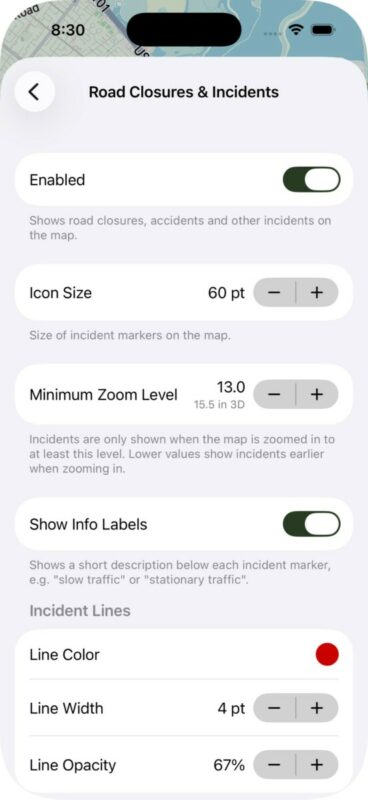
- Icon Size — The size of the incident icons on the map.
- Minimum Zoom Level — Controls how far you need to zoom in before incidents appear on the map. The default is 13.0. Lower values show incidents earlier when zooming in. The corresponding 3D zoom level is shown below for reference.
- Show Info Labels — When enabled, a short description is shown below each incident marker, such as “slow traffic” or “road closed”. This makes it easier to understand the nature of an incident at a glance without having to tap it.
- Incident Lines — Choose color, line width and opacity of the lines that are drawn on the map if the length is known.
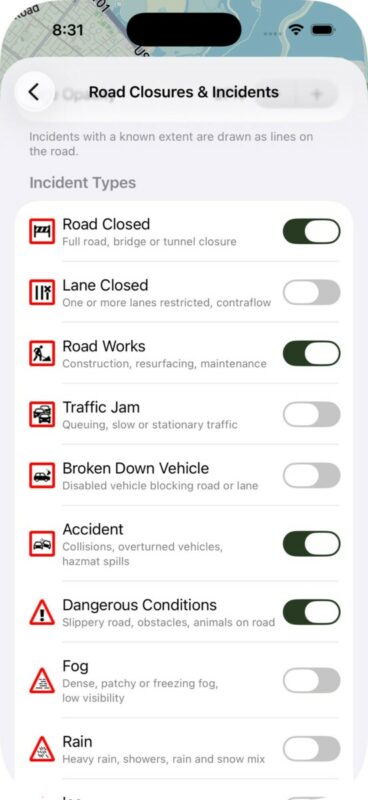
- Incident Types — Choose which types of incidents to display on the map. Each type has its own icon and can be individually toggled on or off. Available types include Road Closed, Lane Closed, Road Works, Traffic Jam, Broken Down Vehicle, Accident, Dangerous Conditions, Fog, Rain, Ice, Wind, Flooding, and Unknown Incident.
Viewing incidents on the map
When the feature is enabled and you are zoomed in past the minimum zoom level, incident markers appear on the map. Each incident type has a distinct icon. When multiple incidents are close together, they are grouped into a cluster marker showing the number of incidents in that area. Zoom in to see individual incidents.
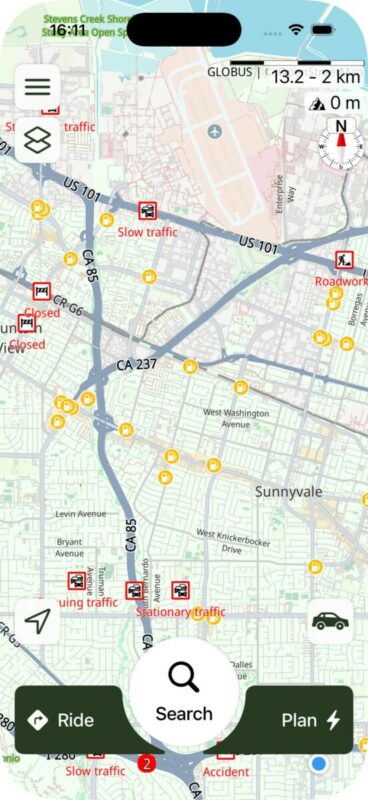
Tap any incident marker to see more details in a callout bubble, including the incident type, location description, and additional information such as delay time and length of the affected area.
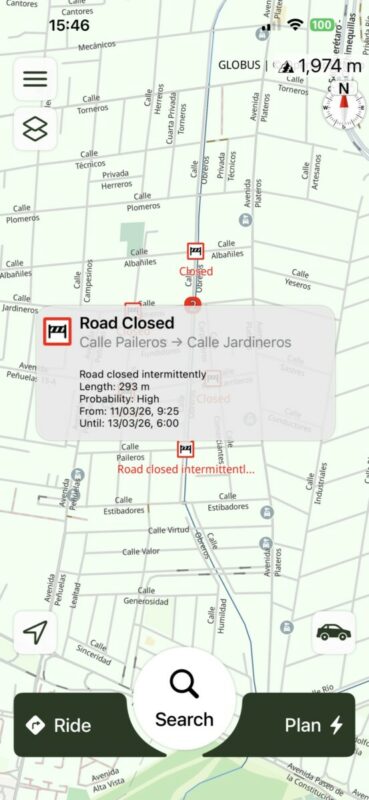
Incidents are shown on the home screen, during route planning, and during navigation.


